



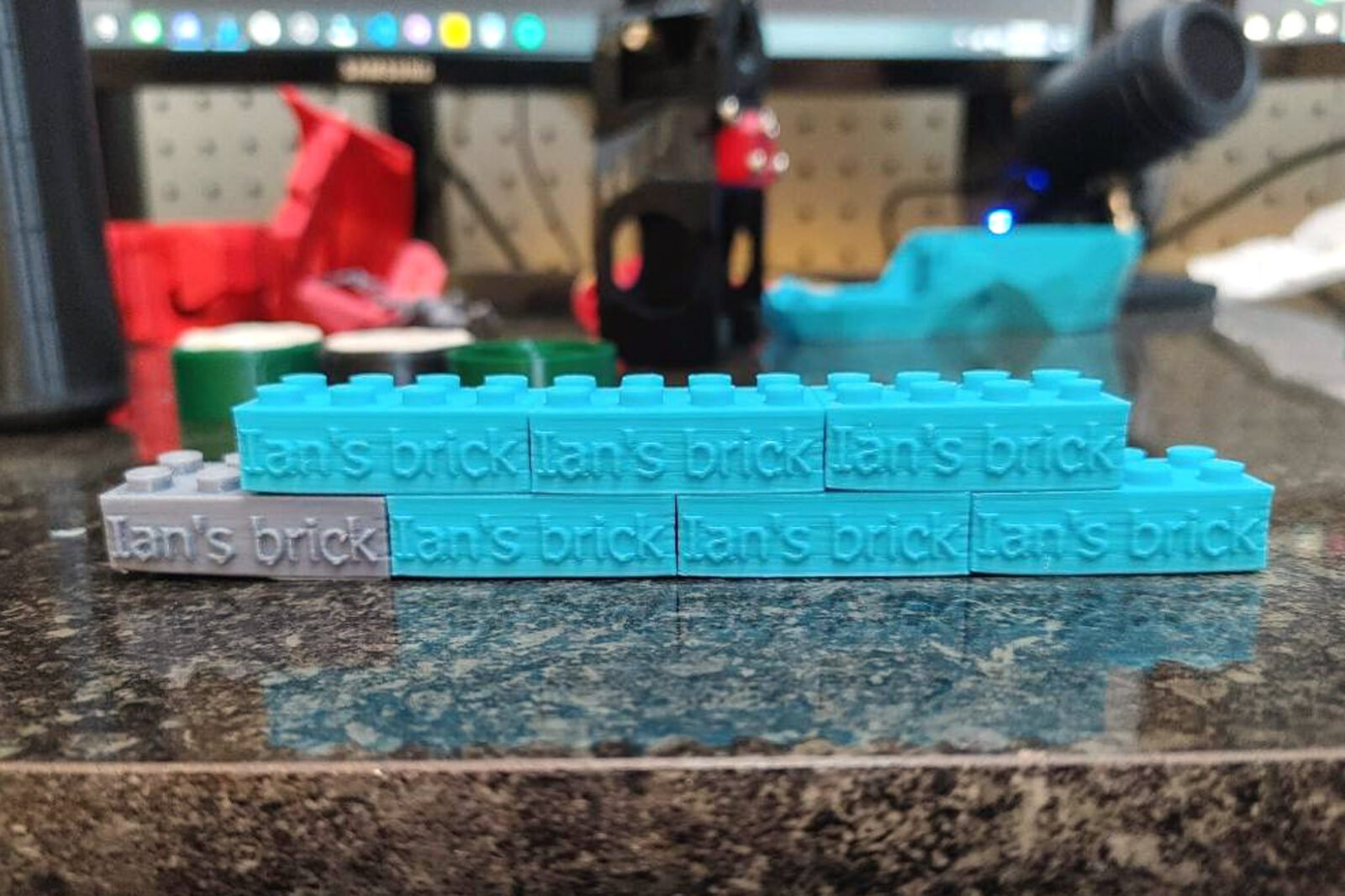

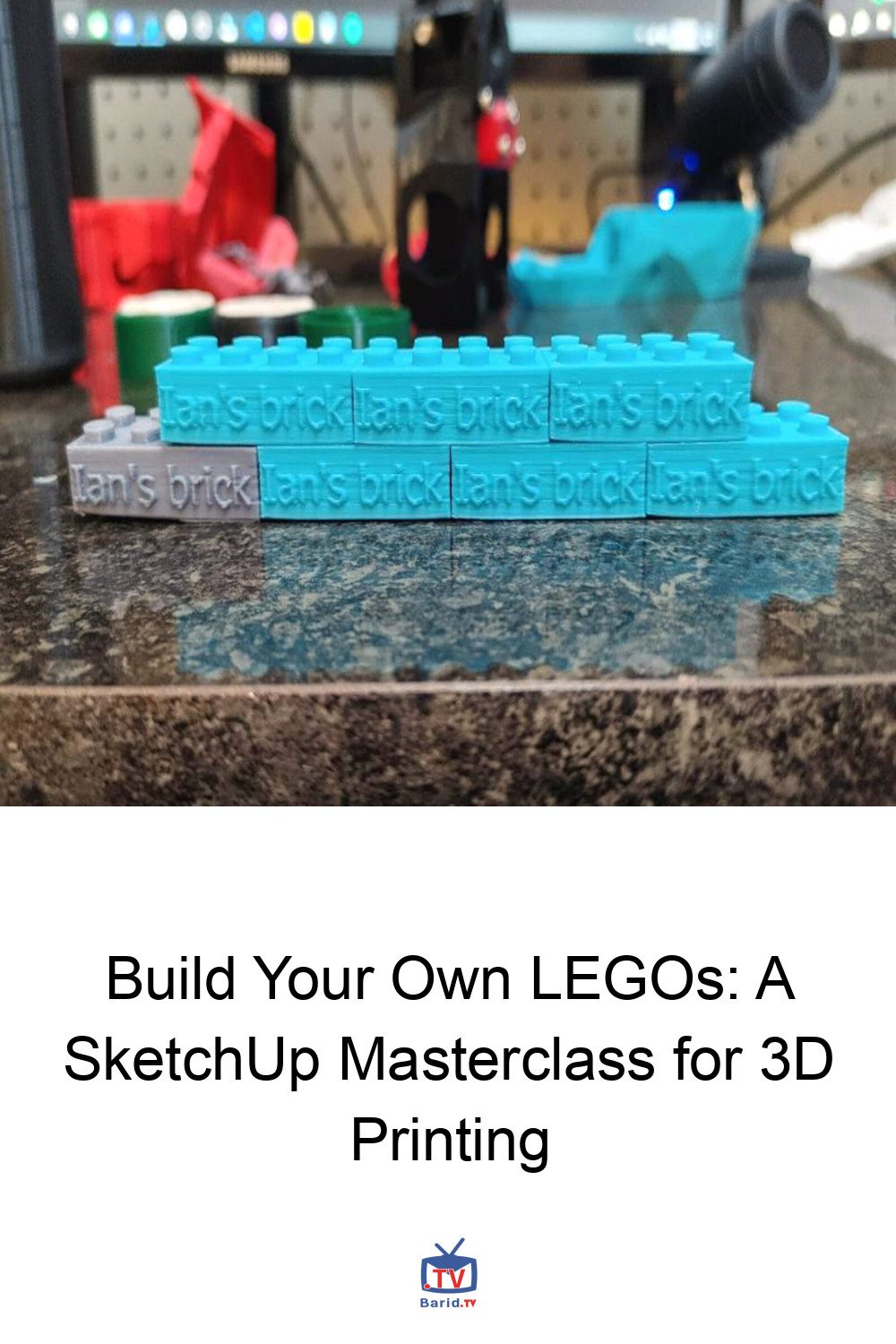
Unlocking Creativity: Designing Your Own 3D-Printable LEGO Bricks with SketchUp
In the vibrant world of ‘making,’ few things capture the imagination quite like 3D printing. Yet, as many educators and hobbyists discover, the initial thrill of simply downloading and printing existing designs can quickly wane. The true power of 3D printing lies not just in replication, but in creation. This project, originally featured in Make: Vol 93, offers a brilliant pathway to harness that creative potential: designing your very own LEGO-compatible bricks using the intuitive CAD software, SketchUp.
This isn’t just about making toys; it’s a hands-on lesson in precision, problem-solving, and the foundational principles of 3D modeling. With a time commitment of just 1–2 hours and a minimal cost of $5–$10, it’s an accessible entry point for anyone eager to move from passive consumption to active design.
From Passive Consumption to Active Creation: The 3D Printing Revolution in Education
The journey often begins with excitement: a new 3D printer, a trove of designs on Thingiverse. But as one instructor at Clear Spring School observed, this quickly becomes as mundane as watching an inkjet printer. The real educational leap comes when students transition from printing others’ designs to crafting their own. For a seasoned woodworker familiar with SketchUp, the challenge was clear: find a basic CAD modeling tool that could empower students to design.
Why LEGO? The Perfect Prototype for Precision Learning
The answer came in a universally recognized form: the LEGO brick. Every child knows them, every builder understands their interlocking magic. Designing a LEGO-compatible brick in SketchUp provided the ideal challenge. Success wasn’t abstract; it was tangible. Did the new brick fit seamlessly with an existing one? The answer was felt directly in their fingers, a measurable outcome directly tied to their effort and precision. This direct, student-observed assessment proved to be one of the project’s most powerful learning aspects, transcending age barriers from 5th grade through high school.
Special thanks are extended to David Heim, author of SketchUp Success for Woodworkers, whose insights were invaluable in refining these instructions.
Mastering SketchUp: A Step-by-Step Journey to Your Custom Brick
Setting the Stage: Configuring Your SketchUp Environment
Before diving into design, proper setup is paramount for 3D printing accuracy:
- Upon opening SketchUp, navigate to Preferences and, under Templates, select 3D Printing — Millimeters. This ensures you’re working with the correct units from the outset.
- Familiarize yourself with the essential tools you’ll be using: Select (Arrow cursor), Line (Pencil), Tape Measure, Circle, Push/Pull, Orbit, Pan (Hand), and Zoom (Magnifying glass).
- The Orbit tool allows you to rotate your view, Pan to drag it, and Zoom to adjust magnification.
- Critical Note: The Measurements box in the lower right-hand corner is your best friend. Precise keyboard input of dimensions is non-negotiable. Without exact measurements, your LEGO block will be misshapen and incompatible.
- Understand SketchUp’s X-Y-Z drawing environment: Red for left-to-right, Green for front-to-back, and Blue for up-and-down. Your lines will snap to these axes, indicated by their color.
Phase 1: Building the Base – Designing Your Brick’s Foundation
Once comfortable with the tools, follow these steps precisely to create the base rectangle:
- Draw a line along the red axis, inputting 31.8mm, then press Return.
- From the end of that line, draw a second line along the green axis, inputting 15.9mm, then Return.
- Continue from that point, drawing along the red axis for 31.8mm.
- Complete the rectangle by drawing the fourth line, entering 15.9mm.
(Images by Doug Stowe)
Phase 2: Bringing it to Life – Adding Dimension and Detail
Now, let’s give your brick its iconic shape and studs:
- Use the Push/Pull tool to pull the rectangle upwards, entering the dimension 11.49mm to give it height.
- Engage the Tape Measure
tool. Hook it to one edge of the top surface and pull it across, creating a dotted guide line parallel to the edge. Enter
15.9mm.
- Create more dotted guide lines: 3.95mm inward from each side of the rectangle.
- Form additional dotted lines 3.95mm from the front-to-back guide line you made earlier.
- Erase the initial dotted line you drew at the center. Where the remaining dotted lines intersect, you’ve located the precise centers for your eight round nubs (studs).
- Select the Circle tool. At each of the eight intersection points, click to place the center, then pull and click again. Immediately type 2.45mm to define the radius of each nub. Repeat for all eight.
- With all circles formed, use the Push/Pull tool to push down on the top surface of the block (within the circles) by 1.89mm. Voilà! The top of your LEGO block is complete.
- To keep your workspace clean, erase all guide lines using the Eraser tool or by selecting “delete guides” from the Edit menu.
Phase 3: The Underside – Ensuring Interlocking Functionality
The underside is crucial for compatibility. Let’s create the internal structure:
- Use the Orbit tool to rotate your block, giving you a clear view of its underside.
- With the Tape Measure, create dotted guide lines 1.5mm inward from each edge of the bottom surface.
- Using the Pencil tool, connect these dotted lines where they meet, forming a new inner rectangle on the underside.
- Use the Push/Pull tool to create the inner cavity by pushing this newly formed rectangle upwards by 9.99mm. This forms the hollow space essential for interlocking with other bricks.
This project culminates in a truly satisfying experience: holding a physical object you designed from scratch, knowing it perfectly integrates with a beloved toy. It’s a testament to the power of precision and the joy of creation through CAD modeling. Happy building!
For more details, visit our website.
Source: Link