



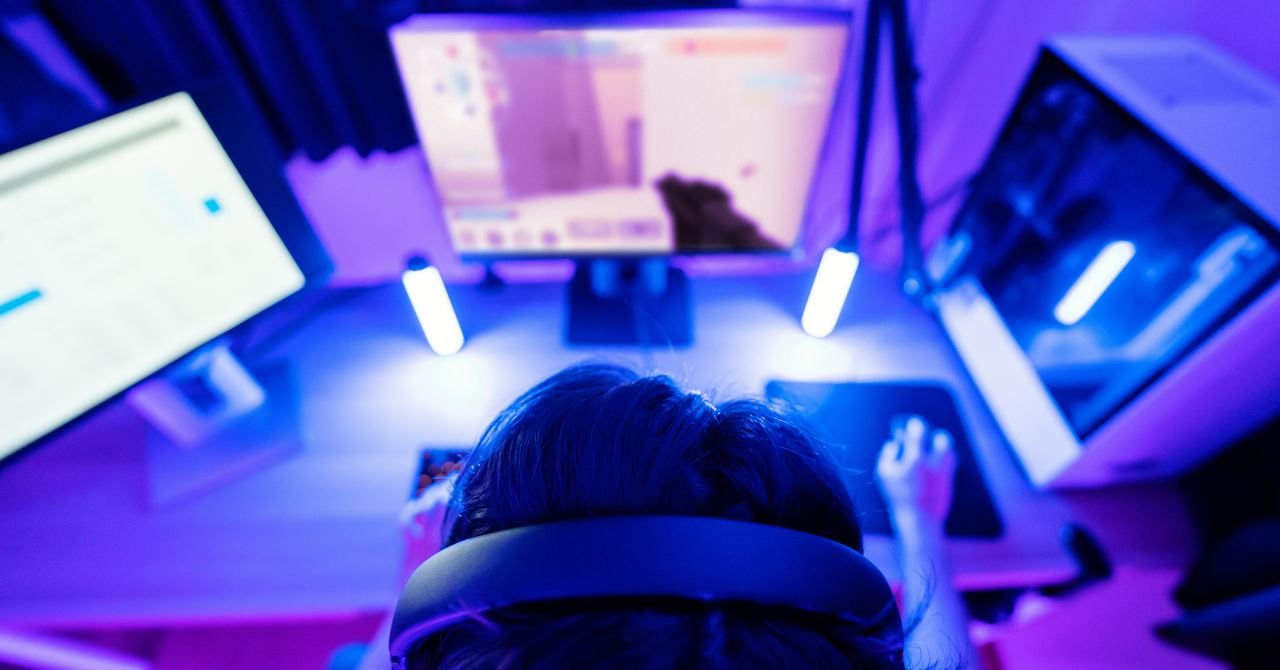

Mac Gaming Reimagined: Bringing SteamOS to Your Apple Silicon Machine
For many Mac users, a significant portion of their Steam library remains frustratingly out of reach. It’s a common lament, and often, it’s not entirely the user’s fault. Apple’s decision to cease 32-bit game support with macOS Catalina in 2019 rendered countless titles unplayable. The situation is set to worsen as macOS prepares to drop support for Intel Mac applications, potentially sidelining even more games, despite Apple’s assurances that some older titles might persist.
But what if there was another way to breathe new life into your dormant game collection? Enter a groundbreaking solution: FX Steam Launcher. This free, open-source application ingeniously brings the ARM version of SteamOS—the very operating system powering Valve’s acclaimed Steam Deck—directly to your Apple Silicon Mac. By leveraging a combination of a virtual machine and compatibility layers, FX Steam Launcher transforms your Mac into a versatile gaming hub.
To embark on this gaming renaissance, you’ll need an Apple Silicon Mac running macOS 15 or later; Intel Macs are not supported. The setup process is surprisingly straightforward, and the rewards are immense. I recently configured this on my MacBook Air, paired a controller, and have since been enjoying a plethora of games previously deemed unplayable.
Getting Started: Your Gateway to SteamOS
The journey begins with a simple download. Acquire the FX Steam Launcher application, mount the DMG file, and drag the app into your Applications folder. Upon its inaugural launch, a helpful pop-up will guide you through the process of downloading and installing SteamOS within a virtual machine.
Click “Create New Disk,” and you’ll be prompted with a few crucial questions. The most vital consideration is the hard drive size for your virtual SteamOS environment. While the default 64 GB is often ample, consider allocating more space if you anticipate installing numerous large titles. You also have the flexibility to choose the drive’s location and set a password for accessing SteamOS.
Once you click “Create,” the application will commence downloading and installing SteamOS. This is an opportune moment to prepare your gaming setup: head to System Settings on your Mac and pair your preferred game controller via Bluetooth. FX Steam Launcher boasts broad compatibility with most modern gamepads, including Xbox, DualSense, DualShock, and Made for iPhone controllers. I personally found my Nintendo Pro Controller worked flawlessly.
Diving into Your Enhanced Steam Library
Soon, the familiar Steam login screen will appear, inviting you to enter your credentials. Upon successful login, your entire Steam library awaits. The virtual machine meticulously emulates the Steam Deck experience, which might require a brief adjustment period if you’re new to Valve’s handheld. A particularly useful feature is the library’s intelligent categorization, distinguishing between games known to work seamlessly on SteamOS and those that might require some tinkering. Many of my games sprang to life instantly, complete with full gamepad support.
Navigating Performance and Tweaks
It’s important to manage expectations: this isn’t a magic bullet for every single game. Running SteamOS within a virtual machine, coupled with its inherently “fiddly” nature, means some titles might demand a bit of optimization. In certain instances, adjusting graphics settings proved necessary for optimal performance. For example, getting the controller to work correctly in Psychonauts
required a user-made patch—a fix that would also be needed on an actual Steam Deck. When encountering performance hiccups, a quick Google search often yielded solutions from the vibrant Steam Deck community, whose experiences proved invaluable.
Naturally, the processing power of your Mac, especially models like the MacBook Air, imposes certain limitations. A virtual machine, by design, doesn’t harness your machine’s full capabilities. However, a community-compiled list of compatible games offers a valuable resource, detailing which titles have been successfully played on various devices. Consulting this list before diving into your favorite games is highly recommended.
Beyond Steam: Sideloading and Customization
This innovative approach offers more flexibility than previous, often unsupported, methods for running Windows games on a Mac. I even managed to install several non-Steam games. Sideloading on SteamOS involves booting into “Desktop Mode,” accessible via the SteamOS sidebar under “Power.” This transitions you to a Linux-based desktop environment, complete with a web browser. From here, you can download games, place them in your chosen folder, and then direct Steam to recognize them. While custom art integration wasn’t an option for me, this method successfully brought multiple additional games to life.
One can’t help but wish Valve would integrate similar compatibility technology into the official Steam Mac client, enabling native execution of Windows games. Such a move would undoubtedly be a monumental hit with Mac users.
Power User Tips and Couch Gaming
For those who enjoy fine-tuning their experience, the FX Steam Launcher offers a robust settings menu, accessible from the menu bar or via the Command-comma keyboard shortcut. Here, you can customize your virtual Steam Deck’s resolution, configure audio preferences, and even submit game statistics to contribute to the community’s knowledge base.
Ultimately, FX Steam Launcher is a remarkable piece of software. Imagine this: connecting your MacBook to your TV with an HDMI cable, grabbing a gamepad, and enjoying your expanded game library from the comfort of your couch. That’s precisely my plan now that this article is complete.
For more details, visit our website.
Source: Link





Leave a comment