



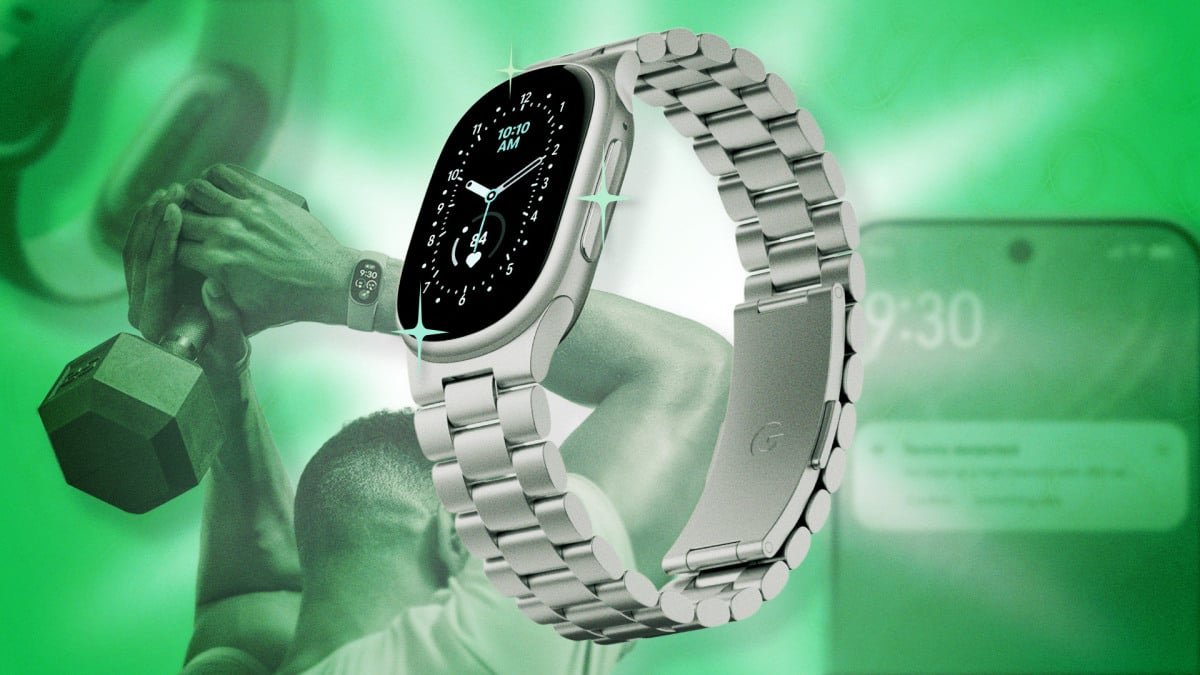

The Fitbit Edge strikes a remarkable balance for individuals seeking a minimalist fitness tracker without sacrificing the convenience of a display for time and crucial workout metrics. This guide delves into seven essential tips and tricks, uncovering hidden features and innovative uses to help you maximize your device’s capabilities.
Customize Your Experience
1. Curate Your Watch Face Collection
While not immediately obvious from the device itself or the companion app, the Fitbit Edge offers extensive watch face customization. Through the Google Health app on your smartphone, you can not only switch watch faces but also personalize color schemes and even select specific complications like daily step counts or weather updates.
To access this feature, simply long-press the center of your Fitbit Edge’s watch face. This action reveals a carousel of your pre-selected faces. The final screen in this carousel provides a direct link to the watch face library within your phone’s app, offering the quickest route to customization. Alternatively, navigate to your device settings within the app.
From there, tap “All Clocks” to explore the diverse range of available faces. Once you’ve chosen and installed a preferred face, tap “Customize” to fine-tune its appearance, including color schemes and the data complications you wish to display.
2. Optimize Button Placement for Comfort
The Fitbit Edge is designed with the assumption that its side button will be on the right. However, if you wear other accessories, prefer a lower wrist placement, or find accidental presses occur during hand flexion, you can easily adjust this setting.
Within the Google Health app, go to your device settings, select “Device preferences,” and then change “Tracker orientation” to position the button on the left. Remember to remove and rotate your watch after making this change to ensure the display is oriented correctly for viewing.
Enhance Your Health Tracking
3. Take Control of AI Insights
Google Health’s AI-powered Health Coach can be a double-edged sword, offering both invaluable guidance and potentially overwhelming notifications. Fortunately, Google has implemented a feature allowing you to disable unprompted insights while retaining on-demand access to the AI’s capabilities.
To manage this, tap your profile picture in the app, then navigate to “Google Health Settings,” followed by “Coaching,” and finally select “No Coach Insights.” This will halt the flow of chatty summaries and notifications throughout your day. Should you require assistance, the “Ask Coach” button remains available for questions, AI-powered food logging, or workout logging.
4. Stream Heart Rate Data to Strava for Advanced Workouts
While the Fitbit Edge’s native workout app is functional, its customization options are limited. For more detailed workout analysis, you can broadcast your heart rate data to third-party applications like Strava.
On your Fitbit Edge, swipe down from the top of the screen and tap the “wifi heart” icon to enable heart-rate broadcasting. Next, open the Strava app, initiate a workout recording, and swipe up from the bottom of the screen to reveal workout options. Select the Fitbit Edge as your heart rate sensor. Your phone will now track your workout, leveraging real-time heart rate data from your Fitbit. Strava further enhances your experience with a lap button, previous lap time displays, and a comprehensive map of your route.
Refine Accuracy and Battery Life
5. Calibrate Step Counting for Precision
Fitbit devices have historically been known for their slightly generous step counts compared to other wearables, often attributing hand and arm movements to steps. You can fine-tune your device’s sensitivity to improve accuracy.
If you wear your Fitbit Edge on your dominant hand (e.g., right hand for a right-handed individual), adjust your “Wrist preference” to “dominant” within the “Device preferences” section of the phone app. Even if you wear the device on your non-dominant hand, setting this preference to “dominant” can instruct the Fitbit to slightly undercount steps, leading to a more realistic total.
6. Optimize GPS Settings for Battery Efficiency
The Fitbit Edge offers flexibility in GPS usage, capable of utilizing its built-in GPS or leveraging your phone’s GPS. By default, it intelligently switches between sources for optimal performance.
You can override this automatic setting. Navigate to “Device preferences” and then “GPS settings.” If you consistently carry your phone during activities and prioritize Fitbit battery life, configure the device to “always use your phone’s GPS.” Conversely, if you prefer your Fitbit to operate independently without relying on your phone’s GPS, select “use the built-in GPS instead.”
For users with older smartphones, opting for the built-in GPS might yield more accurate distance and pace data than the default switching mode. With newer phones, the choice primarily depends on which device’s battery life you wish to conserve.
7. Seamlessly Switch Between Multiple Fitbits
Google has enhanced the Fitbit app to support multiple devices, coinciding with the release of the Fitbit Edge. This means you can effortlessly switch between your Edge and other Fitbit models, such as the Fitbit Air, depending on your needs. For instance, if you prefer a screenless tracker for certain activities or sleep tracking, you can easily swap to a Fitbit Air while still having all your data consolidated within the same Google Health app.
For more details, visit our website.
Source: Link







Leave a comment