




For many Premium users, the transition of the Fitbit app to the Google Health app brought with it an unavoidable companion: the AI-powered Health Coach. While intended to guide and motivate, its frequent, often verbose, and sometimes even misguided ‘insights’ have become a point of contention. If you’ve found yourself wishing for a quieter, more factual health companion, you’re in luck. Google has introduced improved methods to take back control. This guide will walk you through two distinct approaches: completely disabling the AI, or simply muting its unsolicited advice while retaining other smart features.
Why Your Digital Health Coach Might Need a Time-Out
At the heart of the Google Health app’s premium experience lies the AI-based Health Coach. Whether you’re on a free trial from a new device or a paid Google AI Pro/Ultra subscriber, this feature is designed to offer daily updates on your sleep, workouts, and recovery. It delivers these insights directly to your main screen and via notifications, aiming to keep you engaged and on track.
However, the Coach isn’t without its flaws. Users, including myself, have noted instances of the AI “hallucinating,” misinterpreting workout data, or failing to grasp personal goals. One Reddit user famously dubbed it the “Demotivation Coach” after it repeatedly discouraged workouts post-surgery. Others have observed discrepancies between the Coach’s advice and the very data it’s supposed to be analyzing.
Beyond factual inaccuracies, the Coach’s tone can be a significant deterrent. Its often overly positive or unnecessarily negative “pep talks” can feel arrogant or simply out of sync with a user’s mood or needs. While Google’s team has been working to refine the Coach’s insights, making them more readable and less random, the desire for neutral, factual feedback—or none at all—remains strong for many.
Two Paths to Peace: Managing Your AI Experience
Option 1: Taming the Insights, Keeping the AI Core
If you appreciate some of the AI’s capabilities but wish to silence its unprompted daily “pep talks,” Google has quietly introduced a solution. These unsolicited messages are what the app refers to as “insights,” and a setting to disable them was added in the August 2026 feature update.
To turn off these specific insights:
- Tap on your profile picture.
- Navigate to Google Health Settings.
- Select Coaching.
- Choose No Coach Insights.
Once activated, the proactive insights will cease, leaving your “Today” screen cleaner and less cluttered. Crucially, this doesn’t mean losing all AI functionality. You can still manually “Ask Coach” for an on-demand insight from the bottom right corner of the screen. Furthermore, other AI-powered features, such as logging nutrition and workouts via the chat interface, will remain fully operational. This option provides a balanced approach, offering a reprieve from constant notifications without sacrificing the app’s broader intelligent capabilities.
Option 2: A Complete Digital Detox: Disabling the Coach Entirely
For those who find the entire Google Health Coach experience more hindrance than help, a full deactivation is now straightforward. The same August update that introduced the “no insights” switch also streamlined the process for turning off the Coach altogether.
To disable the Google Health Coach entirely:
- Tap on your profile picture.
- Navigate to Google Health Settings.
- Select Coaching.
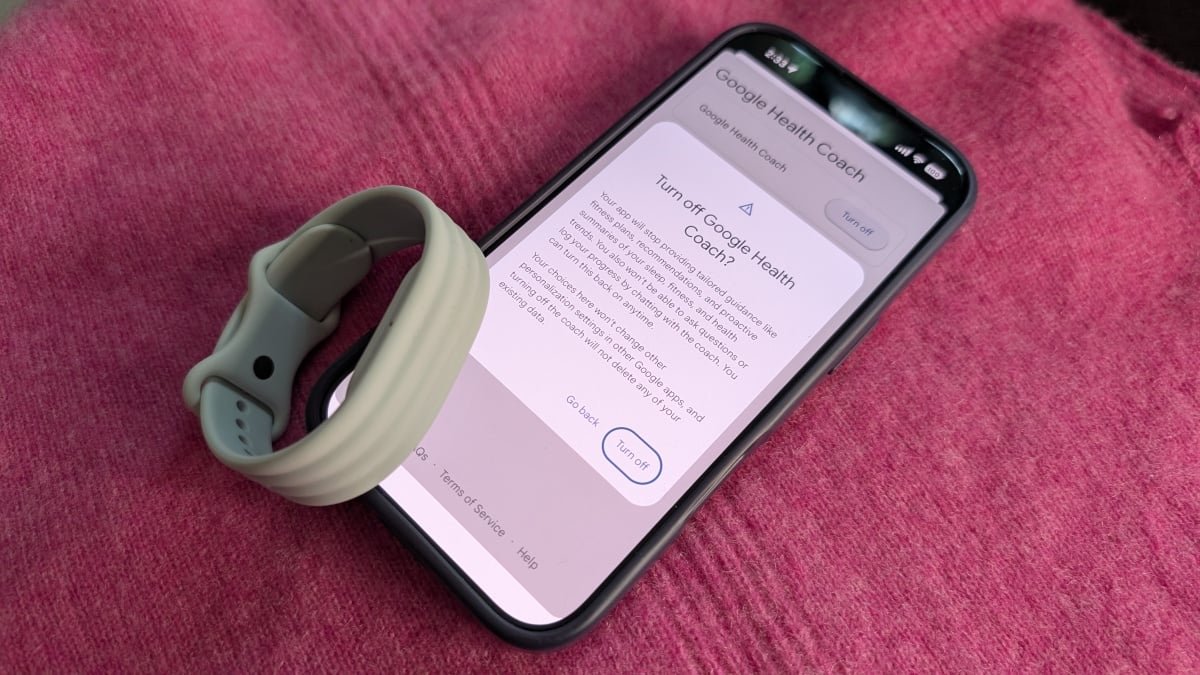
- Tap Turn off Google Health Coach.
The app will then present a clear explanation of what this action entails: “your app will stop providing tailored guidance like fitness plans, recommendations, and proactive summaries of your sleep, fitness, and health trends. You also won’t be able to ask questions or log your progress by chatting with the coach. You can turn this back on anytime.”
Confirm your decision, and the AI-driven coaching will be gone. While you might still see previously generated text paragraphs, no new ones will appear. A card inviting you to re-enable the Coach may pop up, which you can dismiss with “not now.” Should you ever wish to bring your digital coach back, simply tap the persistent “Ask Coach” button in the corner and follow the prompts.
Reclaim Your Health Data Experience
Google’s latest updates provide much-needed flexibility, allowing users to tailor their Google Health app experience to their preferences. Whether you seek a complete break from AI guidance or simply a quieter interface, these settings empower you to make your health app work for you, not the other way around.
For more details, visit our website.
Source: Link








Leave a comment