



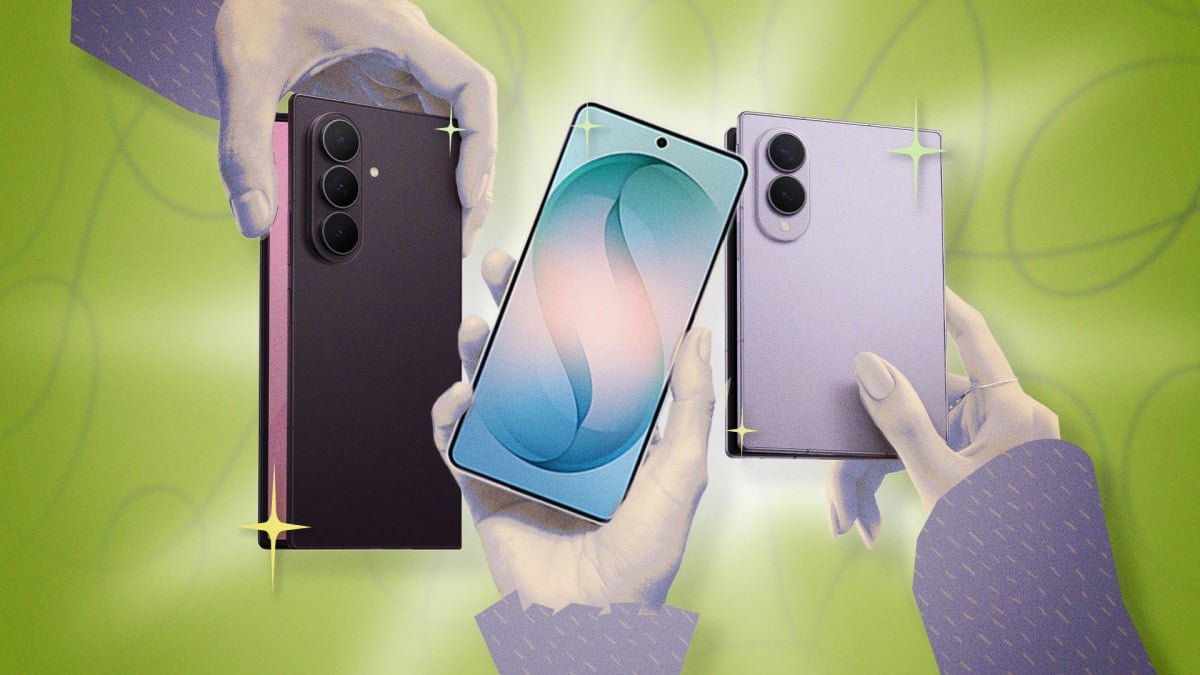

Samsung Galaxy devices dominate the Android landscape, consistently outperforming competitors like Google and Xiaomi in global market share. This widespread adoption isn’t just about hardware; it’s also thanks to Samsung’s innovative software enhancements layered atop Google’s core Android operating system. If you’re a Galaxy owner, you hold a powerful device brimming with exclusive features designed to elevate your mobile experience. To truly unlock its potential, you need to delve into these unique functionalities. Here are seven indispensable hacks that will transform the way you interact with your Samsung Galaxy.
1. Streamline Your Day with Modes and Routines
Tired of constantly adjusting your phone’s settings? Your Samsung Galaxy can handle it for you. The powerful ‘Modes and Routines’ feature allows your device to react intelligently to your environment and schedule. Imagine your phone automatically switching to ‘Do Not Disturb’ when you arrive at the office and reverting to normal as you leave.
Access this by navigating to Settings > Modes and Routines
. While ‘Modes’ offers predefined notification settings for activities like sleeping or working out, the ‘Routines’ tab is where the magic of automation truly happens. Here, you can define custom triggers—such as specific times, locations, Wi-Fi networks, connected devices (like headphones), or even incoming notifications—to initiate a wide array of actions. These actions range from adjusting display settings and activating specific Do Not Disturb modes to executing tasks within apps or modifying accessibility options, making your Galaxy truly proactive.
2. Instant Contact Access with the Edge Panel
The Edge Panel is more than just a quick launcher for your favorite apps; it’s a versatile tool for enhancing your Galaxy’s usability. One particularly handy customization is adding shortcuts to your most frequently contacted individuals, putting them just a swipe away.
To set this up, go to Settings > Display > Edge Panels. Ensure the feature is activated via the toggle, then tap ‘Panels’. Select the ‘People’ panel, and use the ‘Edit’ button to choose your desired contacts. For even faster access, tap the three dots and ‘Reorder’ to place the ‘People’ panel at the top of your list. While you’re there, explore other customization options, such as adjusting the panel’s position on the screen or its transparency, to perfectly suit your workflow.
3. Transform Your Lock Screen with Ambient Weather Wallpapers
Give your Galaxy’s lock screen a dynamic, personalized touch with ambient photo wallpapers. This innovative feature allows your chosen photograph to adapt to the real-world conditions around you, subtly dimming at night or displaying raindrops during a storm, creating an immersive visual experience.
To activate this, head to
Settings > Wallpaper and style > Change wallpapers > Create with AI > Weather
. You’ll need to select an image from your gallery and grant location access for accurate weather integration. Once applied to your lock screen, you can further customize its appearance by simply pressing and holding on the locked screen. This allows you to fine-tune elements like shortcuts, widgets, and the wallpaper itself, crafting a truly unique interface.
4. Elevate Your Viewing Experience with Video Brightness Boost
For cinephiles and casual streamers alike, your Galaxy offers a dedicated feature to enhance video playback. This special brightness and vibrancy boost ensures your content, whether local or streamed, looks its absolute best, making colors pop and details sharper.
Activate this by going to Settings > Advanced features > Video brightness. Select ‘Bright’ and then use the individual toggle switches to apply this enhancement to your preferred video streaming and playback applications. Enjoy a more vibrant and engaging visual experience every time you hit play.
5. Personalize Alerts with Edge Lighting Effects
Beyond standard beeps and vibrations, Samsung Galaxy notifications can truly stand out with customizable lighting effects. This not only ensures you catch every incoming alert but also provides a quick visual cue about its origin or importance.
To explore this, navigate to Settings > Notifications > Notification pop-up style > Edge lighting style. Here, you can choose from a variety of captivating styles and colors, and even set the duration of the effect. For an extra layer of personalization, select ‘Color by keyword’ to assign specific colors to notifications based on matching keywords—perfect for giving a unique glow to messages from important contacts.
6. Reconfigure Your Side Button for Instant Actions
Your Galaxy’s side button (often referred to as the power button) is more versatile than you might think. With a simple customization, you can transform it into a shortcut for your most-used functions or apps.
Head to Settings > Advanced features > Side button. Here, you can define what a double-press of the button does—whether it’s launching the camera for a quick shot, activating the flashlight, or opening a specific application of your choice. On the same screen, you can also customize the long-press action, opting to summon your preferred digital assistant (like Bixby or Gemini) or to bring up the traditional power menu. This small change can significantly speed up your daily interactions.
7. Master Your Device with One-Handed Mode
Modern smartphones, especially larger Galaxy models, can be challenging to operate with a single hand. Fortunately, Samsung has integrated a convenient one-handed mode to make your device more manageable.
To activate and configure this, go to Settings > Advanced features > One-handed mode. You can choose between two activation methods: ‘Gesture’ (swipe down from the bottom edge of the screen) or ‘Button’ (double-tap the Home button, if applicable, or swipe down on the navigation bar). Once enabled, the entire display shrinks to a more accessible size, allowing you to comfortably reach all corners of the screen with your thumb. This is a game-changer for multitasking or when you simply have one hand free.
These seven hacks merely scratch the surface of what your Samsung Galaxy is capable of. By diving into these settings and exploring the unique features Samsung has built into its Android overlay, you can significantly enhance your phone’s functionality, personalize your experience, and make your daily interactions more efficient and enjoyable. Take the time to experiment; your Galaxy is waiting to surprise you with its hidden depths.
For more details, visit our website.
Source: Link