



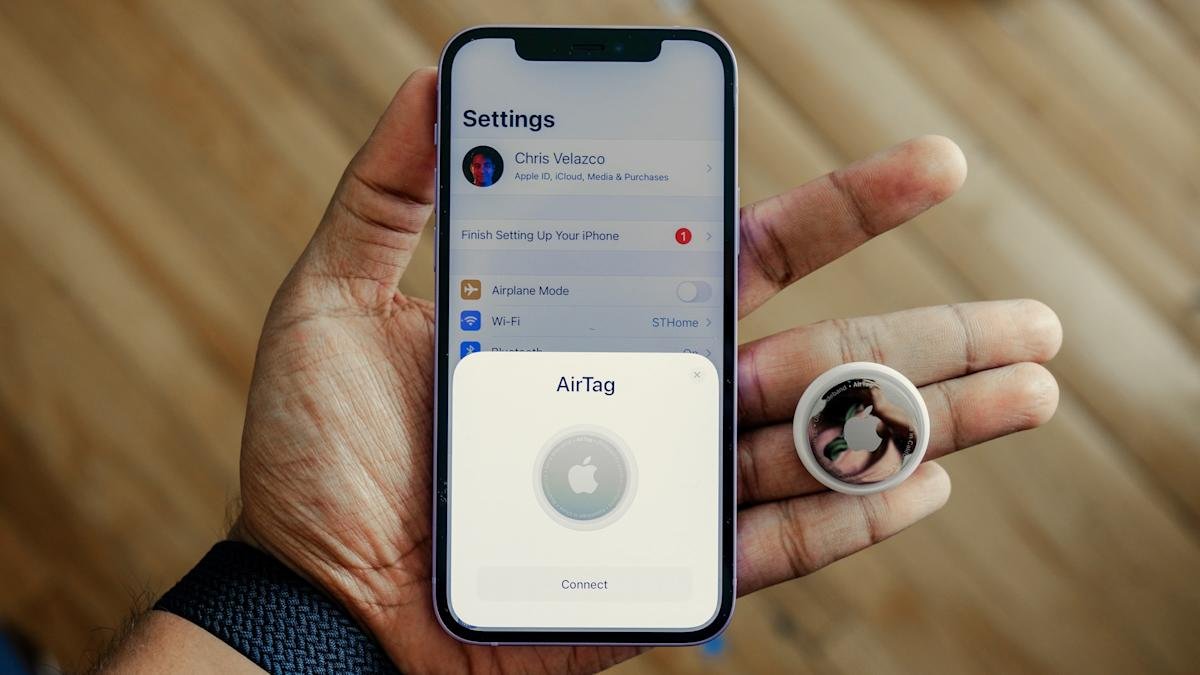

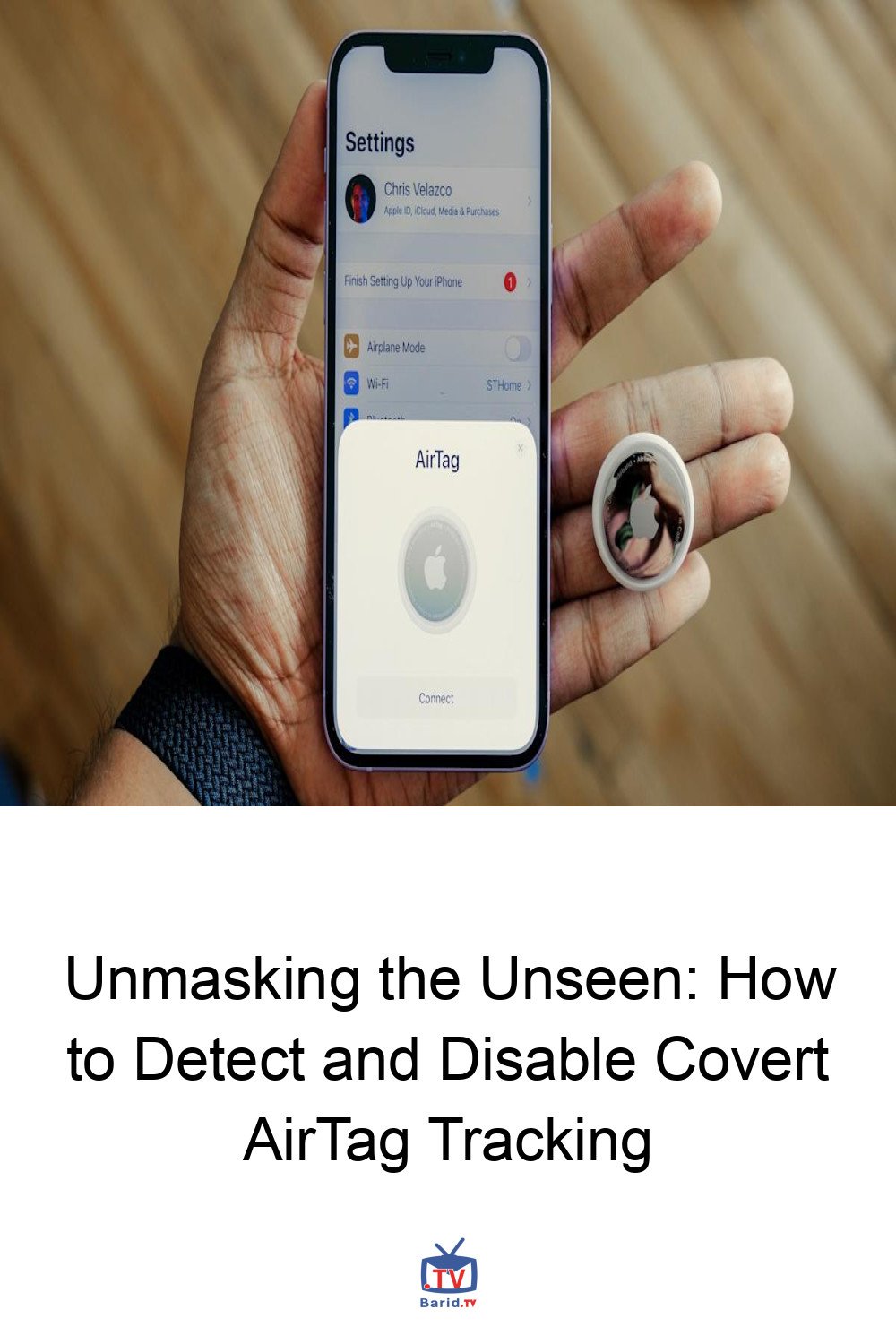
Apple’s AirTag, a compact and ingenious device, was primarily designed to help users keep tabs on their personal belongings – from keys and wallets to bags and luggage. However, their small, discreet nature has inevitably raised legitimate concerns about potential misuse for unwanted tracking. Recognizing this, Apple has proactively integrated robust safeguards into the AirTag and its expansive Find My network, aiming to mitigate misuse risks and alert individuals if an unknown tracker appears to be moving with them.
If you find yourself worried about the possibility of an AirTag or a similar Bluetooth tracker covertly following you, this comprehensive guide will illuminate how Apple’s unwanted tracking alerts function, what notifications to watch for, and the actionable steps you can take on both iPhone and Android devices to ensure your privacy.
Understanding AirTag Tracking Alerts
AirTags, along with compatible Find My network accessories and certain AirPods models, leverage Apple’s vast Find My network. This sophisticated system relies on Bluetooth signals from nearby Apple devices to relay and update the tracker’s location. To actively combat misuse, Apple has engineered these products with specific features designed to notify an individual if a tracker not associated with their Apple Account seems to be accompanying them.
Should an AirTag or another compatible tracker become separated from its owner and subsequently detected in your vicinity over an extended period, your device may either display a notification or the tracker itself might emit an audible sound. These proactive alerts serve as a critical deterrent against surreptitious tracking. Furthermore, Apple has collaborated with Google to establish a cross-platform industry standard, ensuring that these vital alerts can reach users on both iOS and Android devices, extending protection beyond just iPhones.
Ensuring Tracking Alerts are Active on Your iPhone
For iPhone and iPad users, unwanted tracking notifications are typically enabled by default. Nevertheless, it’s always prudent to verify your settings to guarantee full protection.
Key Settings for Receiving Alerts:
- Software
Version:
Your device should be running iOS 17.5 or later (or iPadOS 17.5 or later). While earlier versions (back to iOS 14.5) support basic AirTag alerts, newer updates offer broader compatibility with various other trackers.
- Bluetooth: Ensure Bluetooth is turned on.
- Location Services: Verify that Location Services are enabled.
- Notifications for Tracking Alerts: Confirm that notifications for Tracking Alerts are permitted.
- Airplane Mode: Make sure Airplane Mode is turned off.
You can review these settings by navigating to Settings > Privacy & Security > Location Services and Settings > Notifications. Apple also advises activating Significant Locations within the System Services menu. This feature enhances your device’s ability to discern when an unknown tracker has traveled with you to familiar places, such as your home or workplace.
Steps to Enable Significant Locations:
- Go to Settings.
- Tap Privacy & Security.
- Select Location Services.
- Toggle Location Services on.
- Scroll down and tap System Services.
- Toggle Significant Locations on.
Disabling these critical settings could prevent your iPhone from alerting you to the presence of an unknown AirTag or similar device nearby.
Recognizing Tracking Alerts
If your iPhone detects a tracker that doesn’t belong to you moving alongside you, you might receive a notification similar to one of the following:
- “AirTag Found Moving With You”
- “AirPods Detected”
- “[Product Name] Found Moving With You”
- “Unknown Accessory Detected”
Tapping on such an alert will open the Find My app, presenting a map that illustrates where the item was detected in your proximity. The map uses dots to pinpoint locations where your device registered the tracker. It’s important to note that this indicates the tracker’s presence near you, not that its owner was actively monitoring your location at those specific times.
Occasionally, an alert may have an entirely innocent explanation. For instance, you might be borrowing keys, a bag, or AirPods from a friend or family member. If the item belongs to someone within your Family Sharing group, you have the option to temporarily pause these alerts by tapping the notification and choosing to turn them off for either one day or indefinitely.
What to Do if You Hear an AirTag Sound
Another crucial safety mechanism is the AirTag’s ability to emit a sound on its own if it has been separated from its owner for a prolonged period and subsequently moved. This audible alert is designed to draw attention to the device, making it harder for it to remain hidden.
Should you hear an unfamiliar chirping or beeping sound, particularly emanating from your bag, a jacket pocket, or even your vehicle, it’s highly advisable to thoroughly check your belongings for a hidden AirTag or a similar tracker.
Locating an Unknown AirTag or Tracker
If you receive an alert and suspect the tracker is still with you, the Find My app provides valuable tools to help you pinpoint its exact location.
Using the Find My App to Locate a Tracker:
- Tap the alert notification.
- Tap Continue, then tap Play Sound.
- Listen carefully for the sound. You can play it again if you need more time to locate the item.
For AirTags, specifically, if you possess a compatible iPhone equipped with ultra-wideband connectivity, you may also see a Find Nearby option. This feature utilizes Precision Finding technology to guide you directly to the tracker with precise distance and direction indicators.
Using Precision Finding (for compatible iPhones):
- Tap the alert notification.
- Tap Continue, then tap Find Nearby.
- Follow the on-screen prompts, which will visually guide you to the AirTag’s exact location.
By understanding and utilizing these built-in features, you can significantly enhance your personal security and privacy in an increasingly connected world.
For more details, visit our website.
Source: Link