





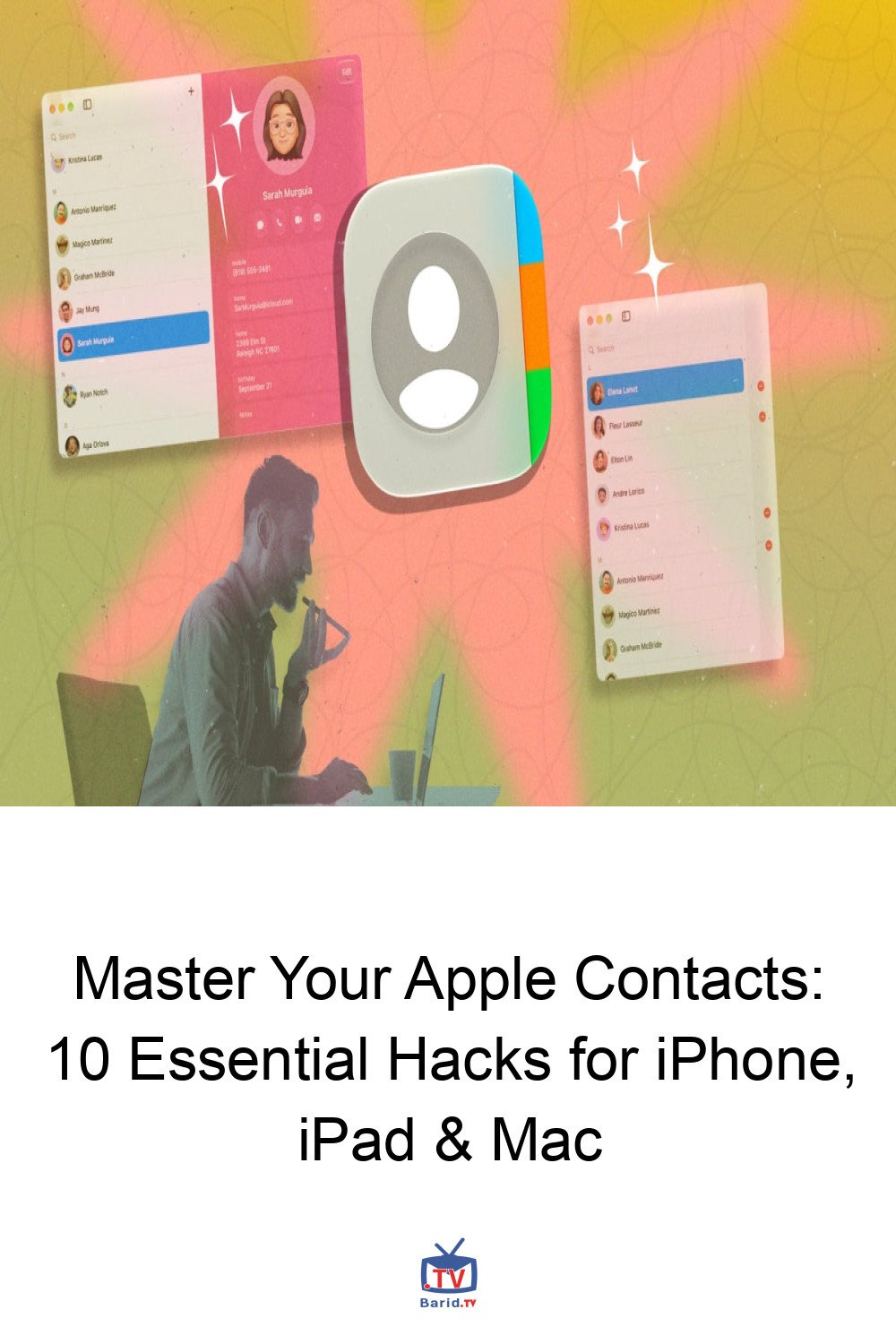
Often overlooked, the humble Contacts app on your Apple devices is far more than just a digital Rolodex. It’s the central nervous system of your communication, a repository of vital connections that, when optimized, can significantly boost your productivity and streamline your digital life. While it may appear basic at first glance, a treasure trove of powerful, time-saving features lies just beneath its surface, waiting to be discovered by savvy iPhone, iPad, and Mac users.
From effortlessly purging duplicate entries to executing bulk actions with surprising speed, mastering these hidden capabilities will transform how you interact with your network. Prepare to unlock the true potential of your Apple Contacts app with these ten indispensable hacks.
Streamlining Your Contact Management
Banish Duplicates with Ease
Is your contacts list cluttered with multiple entries for the same person or business? Apple’s Contacts app offers a remarkably simple solution. On your iPhone, iOS intelligently prompts you at the top of your contacts list when duplicates are detected, allowing for quick merging or deletion. Mac users aren’t left out; simply open the Contacts app, navigate to the Card menu at the top of your screen, and select Look for Duplicates. This feature swiftly identifies redundant entries, empowering you to maintain a clean, efficient address book.
Master Bulk Actions on the Go
Selecting multiple contacts for deletion, sharing, or other actions can be cumbersome. While Mac users can easily select multiple entries using Shift or Ctrl keys, iPhone and iPad users have a less obvious, yet incredibly efficient, method: the two-finger swipe gesture. With two fingers, swipe upwards or downwards on your contacts list to instantly select multiple entries. Once you’ve mastered this intuitive gesture, you can scroll and repeat the swipe to add more contacts to your selection, making bulk management faster than ever before.
Smarter Sharing and Communication
Rapid Contact Sharing via Messages
When sharing a contact, iOS typically presents a privacy-focused prompt, allowing you to choose which specific fields (like phone numbers, emails, or addresses) to send. While excellent for privacy, this extra step can slow down quick shares. For a lightning-fast method, especially within Apple’s Messages app, simply open the Contacts app, long-press on a contact’s name, and select Copy. Then, paste it directly into any iMessage or SMS chat. While this trick doesn’t extend to third-party messaging apps, it’s a game-changer for native communication.
Seamlessly Switch Communication Apps
Your Contacts app isn’t just for standard calls and texts. It’s a universal launcher for all your communication platforms. On your iPhone, open any contact and long-press the messaging button. This action reveals a list of compatible apps—like WhatsApp, Signal, or Telegram—where you can initiate a chat with that person. Similarly, long-pressing the call button within a contact card allows you to choose which app (e.g., WhatsApp, FaceTime, or standard cellular) to use for making a call. This integration saves precious time, especially when connecting with new contacts across various platforms.
Advanced Organization and Backup
Quick Deletion for a Tidy Address Book
iOS prioritizes preventing accidental deletions, which can make removing unwanted contacts feel like a multi-step process. However, there’s a faster way. On your iPhone, long-press any contact’s name in the Contacts app. A popover menu will appear, offering a direct Delete option. For deleting multiple contacts, combine this with the two-finger swipe gesture mentioned earlier. Select your desired contacts, then long-press any one of the selected entries, and choose Delete X Contacts from the menu.
Secure Your Network: Exporting Contacts
Backing up your entire address book is a crucial step for digital security and peace of mind. The Mac Contacts app makes this incredibly straightforward. Open Contacts on your Mac, go to File > Export > Export vCard
. This generates a .vcf file containing all your contacts, which can be easily imported into other services like Google Contacts or used as a standalone backup. For quick reference or printing, you also have the option to export your contacts as a PDF file via
File > Export as PDF.
Customize Your Contact Cards
When adding new contacts on your Mac, the Contacts app often presents a multitude of fields you might never use. To streamline your data entry and keep your contact cards clean, you can customize which fields appear by default. This ensures you only see and fill in the information most relevant to your needs, such as just a phone number and name, without unnecessary clutter.
By integrating these powerful yet often-hidden features into your daily routine, you’ll transform your Apple Contacts app from a mere list into a dynamic, efficient tool. Take control of your digital connections and experience a new level of productivity across your iPhone, iPad, and Mac.
For more details, visit our website.
Source: Link






Leave a comment