




Unlock Global Conversations with Apple’s Live Translation
Imagine a world where language is no longer a barrier, where instant understanding bridges cultures and connects people effortlessly. For decades, this vision was confined to science fiction, famously embodied by Douglas Adams’s whimsical Babel fish. Today, Apple brings that dream closer to reality with its groundbreaking Live Translation feature for AirPods, transforming your wireless earbuds into a personal, real-time interpreter.
The Dawn of Seamless Communication: What is Live Translation?
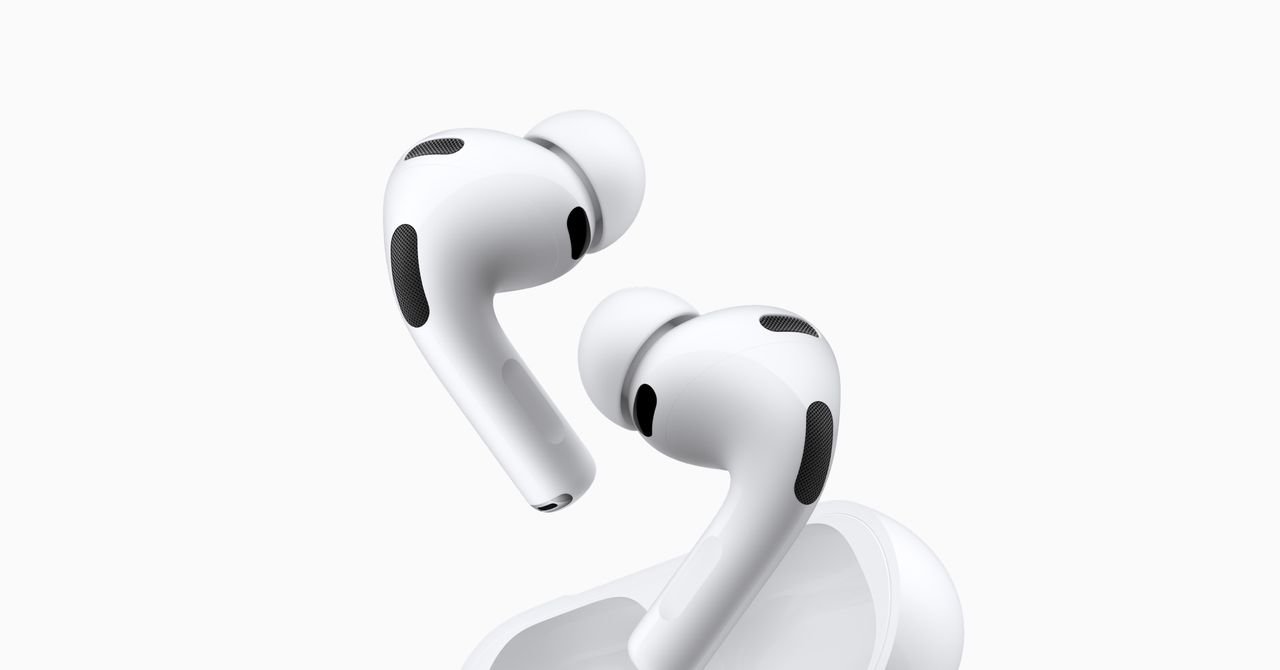
Introduced alongside the AirPods Pro 3, Apple’s Live Translation is a sophisticated feature designed to provide on-demand, instantaneous language translation directly through your AirPods. It’s not just a novelty; it’s a powerful tool for travelers, international callers, and anyone looking to connect across linguistic divides. Forget fumbling with translation apps on your phone; now, the conversation flows naturally, right into your ears.
Compatibility and Core Requirements
While unveiled with the latest AirPods, Live Translation isn’t exclusive to the newest models. To experience this innovative feature, you’ll need:
Supported AirPods Models:
- AirPods 4 (with active noise cancellation)
- AirPods Pro 2
- AirPods Pro 3
- AirPods Pro Max (2026 version only – the original Max is not supported)
iPhone and Software Prerequisites:
The intelligence behind Live Translation demands robust processing power, meaning specific iPhone models and the latest software are essential:
- iPhone
15 Pro or iPhone 15 Pro Max
- Any iPhone 16 or iPhone 17 model
- iOS 26 software update (ensure it’s downloaded and installed)
Crucially, Live Translation leverages Apple Intelligence. Therefore, you must also enable your iPhone’s AI capabilities. Navigate to Settings > Apple Intelligence & Siri and toggle Apple Intelligence on if it isn’t already.
Setting Up Your Personal Interpreter
Getting started with Live Translation is straightforward, but requires a few preparatory steps to ensure a smooth experience.
Downloading Essential Languages
Before you embark on a multilingual conversation, you’ll need to download the required language packs directly to your iPhone. This ensures that all translation processing can occur privately on your device, a key aspect of Apple’s commitment to user privacy. Your conversations are never sent to Apple’s servers for translation.
- Ensure your AirPods are properly paired and connected to your iPhone.
- Place your AirPods in (or on) your ears.
- Go to Settings on your iPhone.
- Scroll down and tap on your AirPods’ name (e.g., “John’s AirPods Pro”).
- Select Languages and download both the source and target languages you anticipate using.
Engaging in Real-Time Conversation
With setup complete, activating Live Translation is intuitive and offers multiple access points.
Launching Live Translation:
- Via the Translate App: Open the Apple Translate app on your iPhone, tap the Live button at the bottom, select your desired languages, and then tap Start Conversation.
- AirPods Stem Control: For AirPods earbuds, simply press and hold the stems on both AirPods simultaneously.
- Siri Command: A quick “Hey Siri, start live translation” will activate the feature hands-free.
- Control Center Shortcut: Add the Translate app to your Control Center for quick access.
- Action Button Customization: On supported iPhones, configure the Action button (from iOS Settings) to launch Live Translation directly.
The Live Translation Experience:
When someone speaks to you, their words will be translated into your chosen language and played directly into your ears through your AirPods. When it’s your turn to speak, your words are translated in the opposite direction. You have two options for your conversation partner to understand you:
- On-Screen Text: Show them the translated text appearing on your iPhone screen within the Live tab of the Translate app.
- iPhone Speaker Output: Tap the play button on your iPhone screen to have the translation spoken aloud through your iPhone’s speakers.
To end a Live Translation session, simply tap the “X” button on your iPhone screen.
Important Considerations for Accurate Communication
While incredibly powerful, Apple includes a crucial disclaimer: AI-powered translations can sometimes be “inaccurate, unexpected, or offensive.” If you notice a puzzled or shocked expression on your conversation partner’s face, a quick clarification might be in order. Despite these rare instances, Apple’s Live Translation marks a significant leap forward in making global communication more accessible and immediate, truly bringing the future of language interaction to your ears.
For more details, visit our website.
Source: Link




Leave a comment