



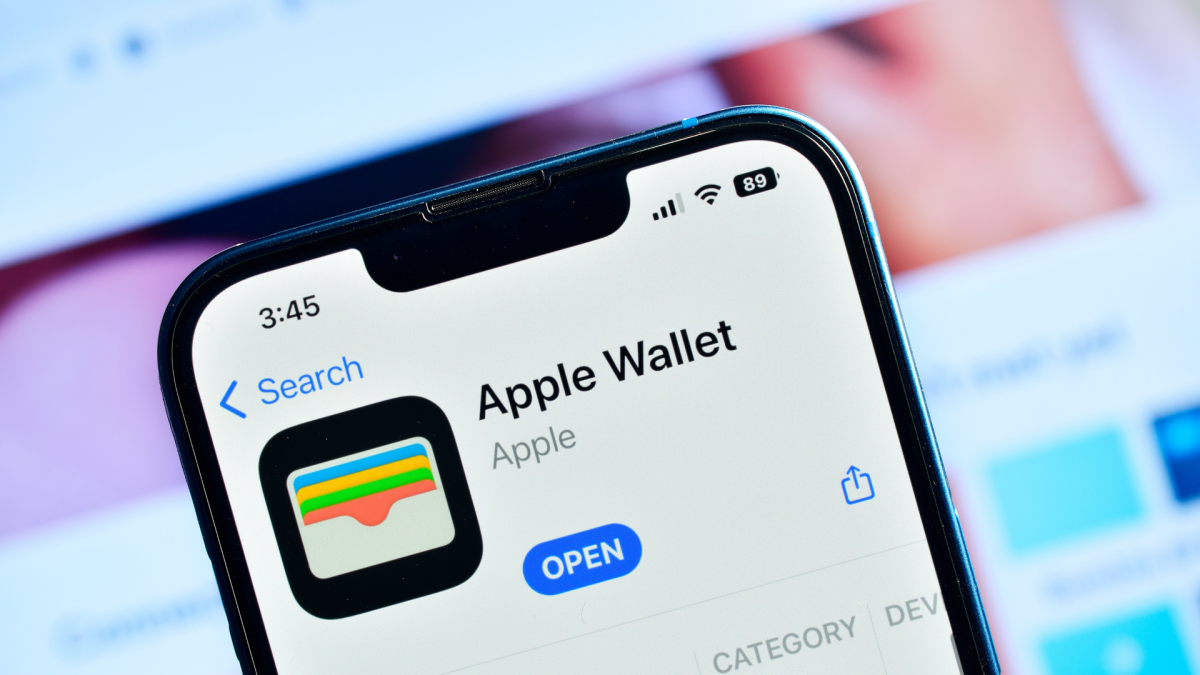

In an increasingly digital world, convenience is king, especially when it comes to online shopping. Apple has significantly enhanced the iPhone user experience with a powerful iOS feature that allows for seamless credit card autofill across virtually any app or browser. While dedicated password managers are highly recommended for comprehensive security, Apple Wallet’s integrated AutoFill offers a robust and user-friendly alternative, particularly for payment details.
Effortless Transactions: Beyond Safari
Previously, credit card autofill was primarily confined to Safari. However, a recent update has expanded this capability system-wide, making your stored payment information accessible and autofillable through Apple Wallet wherever you shop on your iPhone. This means less fumbling for your wallet and fewer manual entries, saving you precious time and reducing the potential for typos.
Even for those who diligently use password managers, the experience of storing and autofilling payment cards can sometimes be clunky or limited by plan features. Apple Wallet’s native integration aims to smooth out these common friction points, providing a streamlined, secure, and consistent method for completing purchases.
Setting Up Apple Wallet AutoFill for Credit Cards
Before you can enjoy the convenience of system-wide autofill, you’ll need to populate Apple Wallet’s dedicated autofill list. This list operates independently from your general Apple Wallet for everyday payments, offering a focused repository for your online transaction details.
Step-by-Step Setup:
- Open the Wallet app on your iPhone.
- Tap the three dots (…) in the upper-right corner to access settings.
- Select “AutoFill” from the options.
- Tap “Add Card”.
- You can then either input your card details manually or use your iPhone’s camera to scan the card for quicker entry.
- The security code (CVV/CVC) is optional. You can choose to store it within Apple Wallet AutoFill for maximum convenience or opt to enter it manually for each transaction, adding an extra layer of security.
How to Use Credit Card AutoFill on Your iPhone
Once your cards are added, using the autofill feature is remarkably straightforward. When you encounter a payment form field on any website or within an app:
Seamless Payment Process:
- Tap on the desired form field (e.g., card number, expiration date).
- A “Paste/AutoFill” option will appear above the keyboard. Tap it.
- Select “AutoFill”, then choose “Credit Card”.
- You will be prompted to authenticate using Face ID or Touch ID, ensuring only you can access your sensitive payment information.
- Finally, tap the specific card you wish to use from your saved list.
Important Note: While incredibly convenient, Apple Wallet’s AutoFill currently requires you to repeat this process for each individual field (e.g., card number, expiration date, name on card). It does not autofill the entire form in one go. However, the biometric authentication and quick selection still make it significantly faster than manual entry.
Conclusion
Apple Wallet’s system-wide credit card autofill is a game-changer for iPhone users, offering a secure, efficient, and integrated solution for online payments. By simplifying the checkout process, Apple continues to enhance the user experience, making digital transactions smoother and more enjoyable.
For more details, visit our website.
Source: Link