


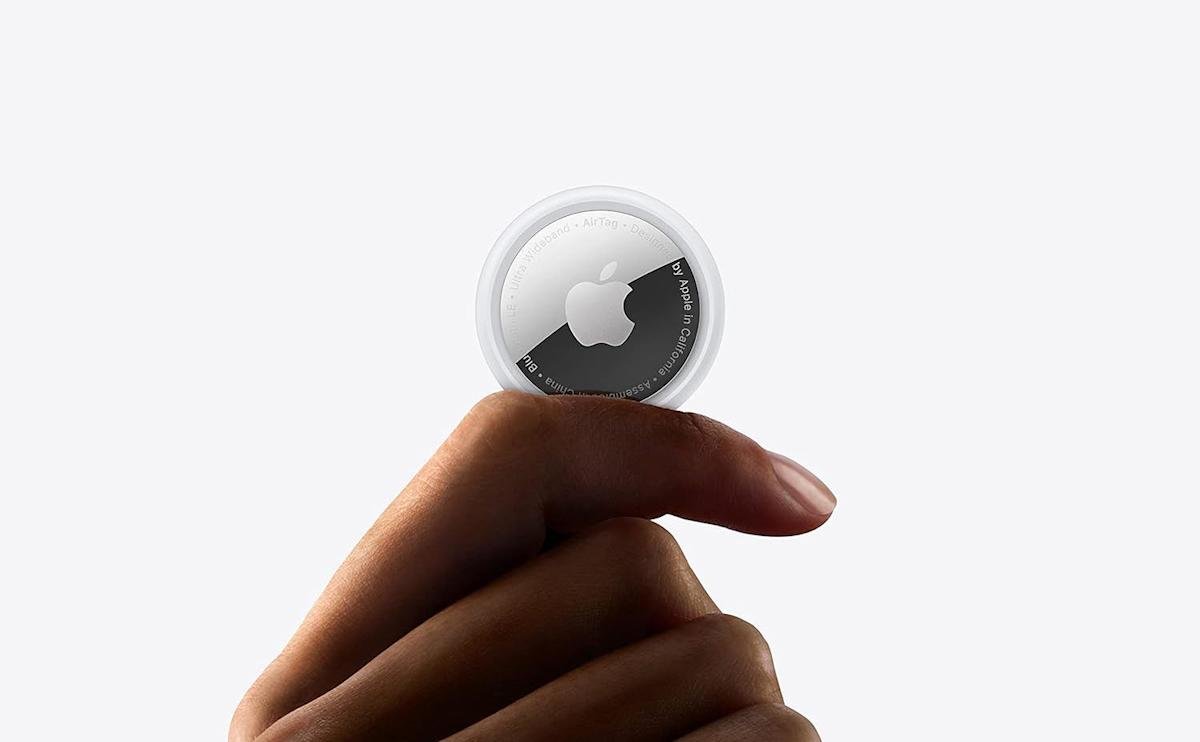

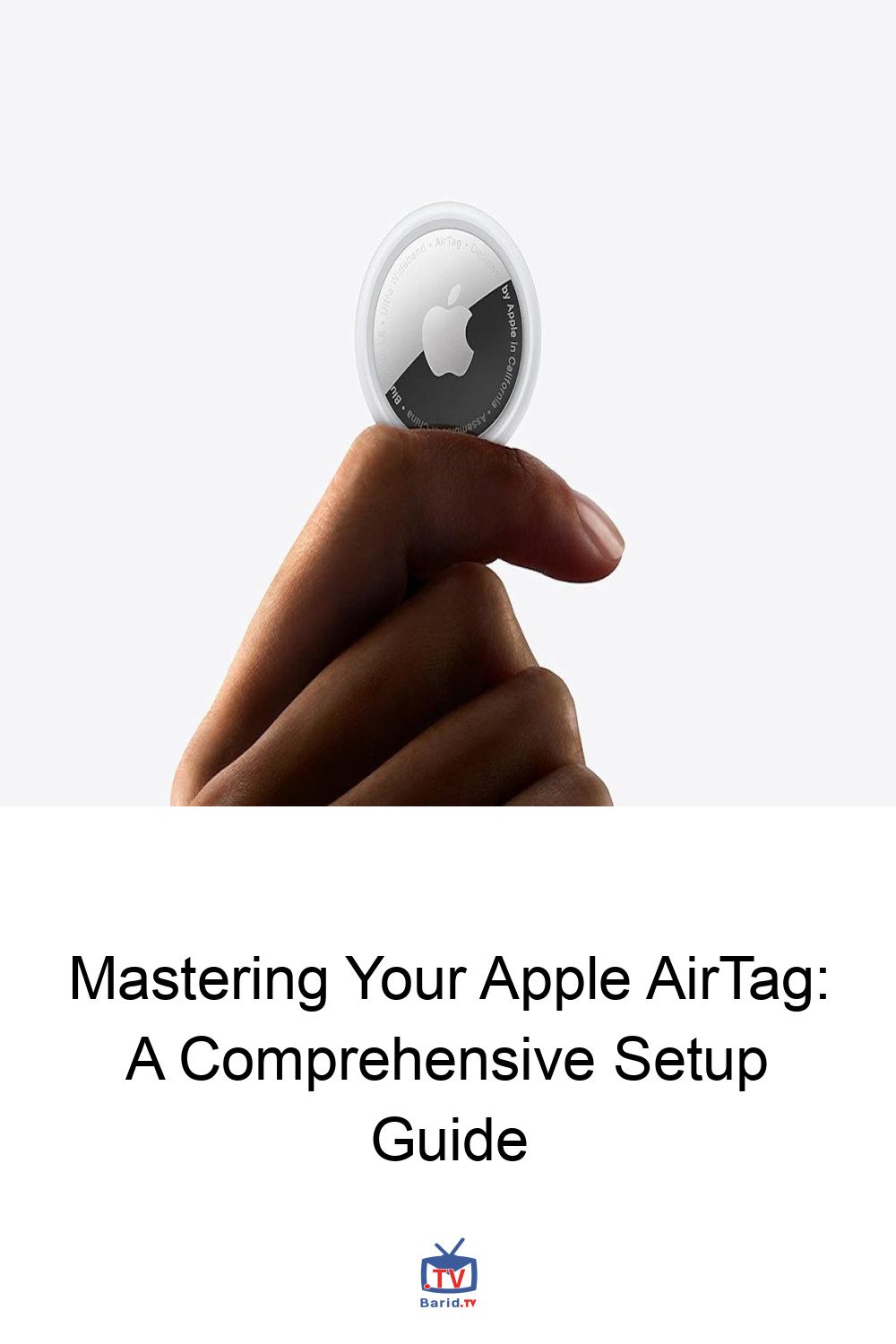
In an increasingly fast-paced world, misplacing essential items can be a source of significant frustration. Enter the Apple AirTag – a compact, powerful tracker designed to bring peace of mind by helping you keep tabs on your most valued belongings. Leveraging Apple’s vast Find My network, AirTags offer a seamless, tool-free setup that takes mere moments, transforming how you locate everything from keys to luggage. This comprehensive guide will walk you through the effortless process of setting up your AirTag, personalizing its identity, and troubleshooting common issues, ensuring your valuables are always within reach.
Getting Started: What You’ll Need
Before embarking on your AirTag setup journey, ensure you have the following essentials at hand to guarantee a smooth experience:
An iPhone or iPad: This device must be signed in to your Apple Account.
- Bluetooth: Ensure Bluetooth is enabled on your iPhone or iPad.
- Location Services: Activate Location Services on your device.
- Operating System: Your device should be running iOS or iPadOS 14.5 or later. (Note: AirTag 2nd generation models require iOS or iPadOS 26.2.1 or later).
- Internet Connection: A stable Wi-Fi or cellular connection is crucial.
Additionally, verify that iCloud Keychain is enabled and your Apple Account setup is fully completed within your device’s Settings.
Seamless Setup: Connecting Your AirTag
The most straightforward method to set up your AirTag is through the intuitive on-screen prompt that appears automatically.
- Activate Battery: Gently remove the plastic tab from your AirTag to activate its internal battery.
- Proximity Pairing: Hold the AirTag close to your unlocked iPhone or iPad.
- Initiate Connection: When the distinctive setup animation appears on your screen, tap ‘Connect’.
- Categorize Your Item: Choose a suitable category for your AirTag, such as ‘Keys’, ‘Backpack’, or ‘Luggage’. For a more personal touch, select ‘Custom Name’ to input your own label and even add an emoji.
- Link to Account: Tap ‘Continue’ to securely link the AirTag to your Apple Account.
- Finalize Setup: Tap ‘Done’ to complete the pairing process.
Upon completion, your newly configured AirTag will be visible under the ‘Items’ tab within the Find My app. If you’re setting up multiple AirTags, ensure only one is near your device at a time. Should more than one be detected, a notification will prompt you to move the others further away before retrying.
Manual Pairing via the Find My App
If the automatic setup animation doesn’t appear, fear not. You can easily add an AirTag manually through the Find My app:
- Open Find My: Launch the Find My app on your iPhone or iPad.
- Navigate to Items: Tap the ‘Items’ tab at the bottom of the screen.
- Add New Item: Tap the ‘Add’ button (usually a ‘+’ icon).
- Select AirTag: Choose ‘Add AirTag’ or ‘Other Item’ if you’re connecting a compatible Find My Network accessory.
- Follow Prompts: Adhere to the on-screen instructions to finalize the setup.
Remember, you can manage up to 32 items within the Find My app, encompassing AirTags, shared items, and compatible accessories. If you reach this limit, you’ll need to remove an existing item before adding a new one.
Troubleshooting: When Your AirTag Won’t Connect
Should you encounter difficulties during setup, or if the pairing animation vanishes, try these troubleshooting steps:
- Re-trigger Animation: Lock your iPhone or iPad, then unlock it again. Wait approximately 15 seconds for the setup animation to potentially reappear.
- Verify Settings: Double-check that both Bluetooth and Location Services are enabled in your device’s Settings.
- Precise Location: Confirm that the Find My app has permission to use ‘Precise Location’.
- Account & Keychain: Ensure you are signed in to your Apple Account and that iCloud Keychain is active.
- Software Update: Verify your device is running the latest version of iOS or iPadOS (iOS or iPadOS 26.2.1 or later is recommended for optimal performance).
- Battery Check: If issues persist, the AirTag’s CR2032 coin cell battery might need replacing. This is a quick and simple process.
- Reset AirTag: If all else fails, you may need to reset the AirTag and attempt the setup process again.
Personalizing Your Tracker: Naming Your AirTag
Assigning a clear, descriptive name to your AirTag is invaluable, especially when tracking multiple items. While Apple offers preset labels during initial setup, you have the flexibility to customize these at any time.
To rename an AirTag after setup:
- Open Find My: Launch the Find My app.
- Select AirTag: Tap the ‘Items’ tab and choose the AirTag you wish to rename.
- Rename Option: Tap ‘Add Name’ or ‘Rename Item’.
- Choose Label: Select a preset label or opt for ‘Custom Name’ to create your own.
- Add Emoji (Optional): Enhance visual identification by adding an emoji.
Clear labels are particularly beneficial for items used in travel, professional gear, or shared household belongings.
Enhancing Utility: AirTag Accessories
Given that AirTags lack built-in clips or adhesive, a suitable accessory is almost always necessary for secure attachment. The ideal accessory will depend entirely on your intended use – whether it’s a key ring, luggage tag, wallet insert, or even a bike mount.
Exploring the array of available accessories can help you find the perfect fit to ensure your AirTag remains securely attached and performs as expected. Choosing the right accessory is key to maximizing your AirTag’s effectiveness.
The Power of Precision: Your AirTag in Action
Once set up, your AirTag autonomously updates its location using Apple’s expansive Find My network. You can effortlessly view its last known location, play a sound to pinpoint its exact position when nearby, or utilize Precision Finding on supported iPhones to receive guided directions directly to your item. With just a few minutes of setup and a thoughtfully chosen label, an AirTag transforms into an indispensable tool for keeping track of your important belongings, providing unwavering peace of mind whether you’re at home or navigating the world.
For more details, visit our website.
Source: Link